Back to Projects

Featured Project · Case Study

Dell Latitude E6420 — Full System Recovery

BIOS Failure · Bootloader Repair · Wi-Fi Restoration

Role
Lead Technician
Layers
Firmware → OS
Outcome
Full recovery
Data loss
None

Project Gallery

Recovery in pictures

01 / 16
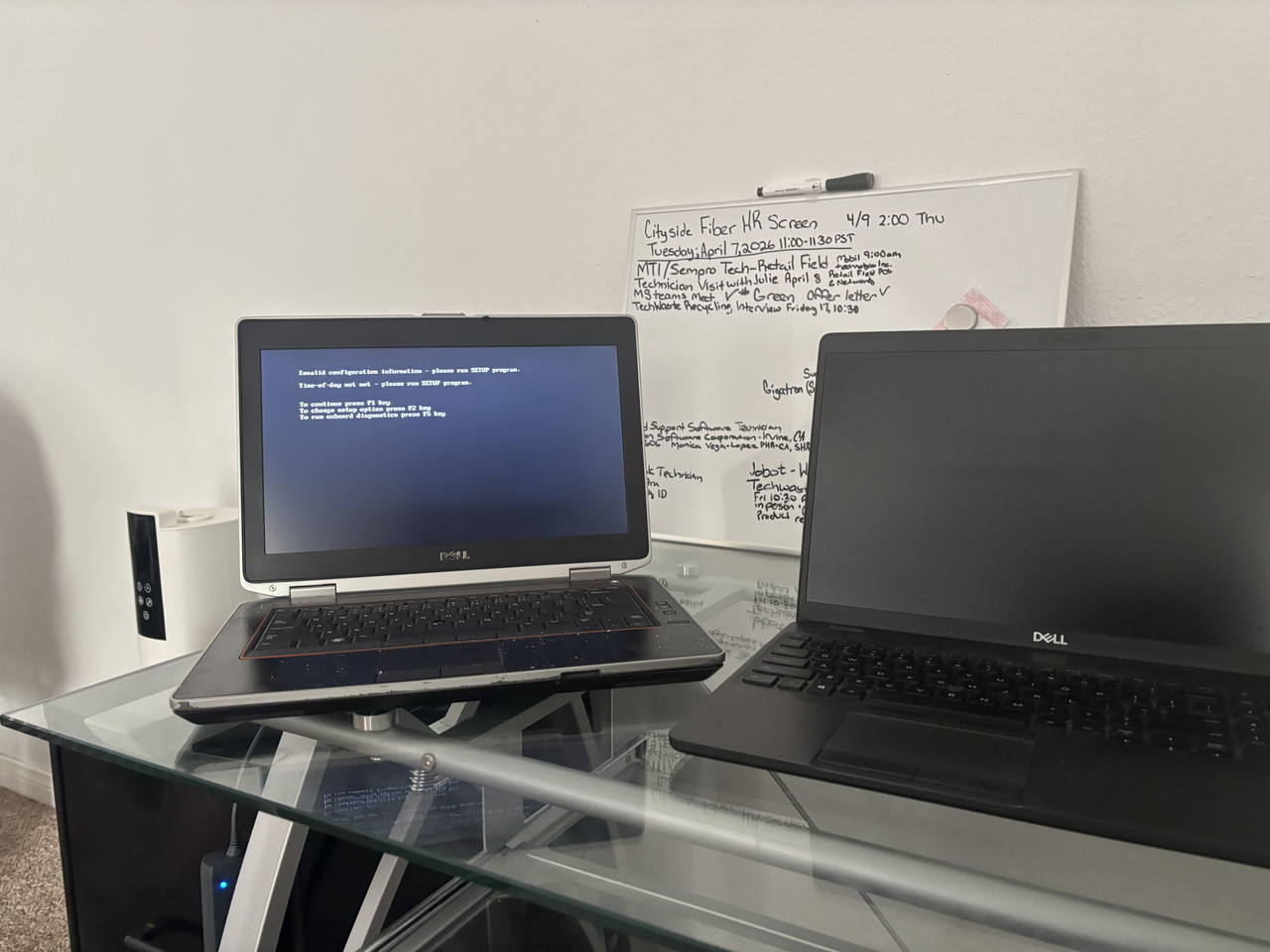
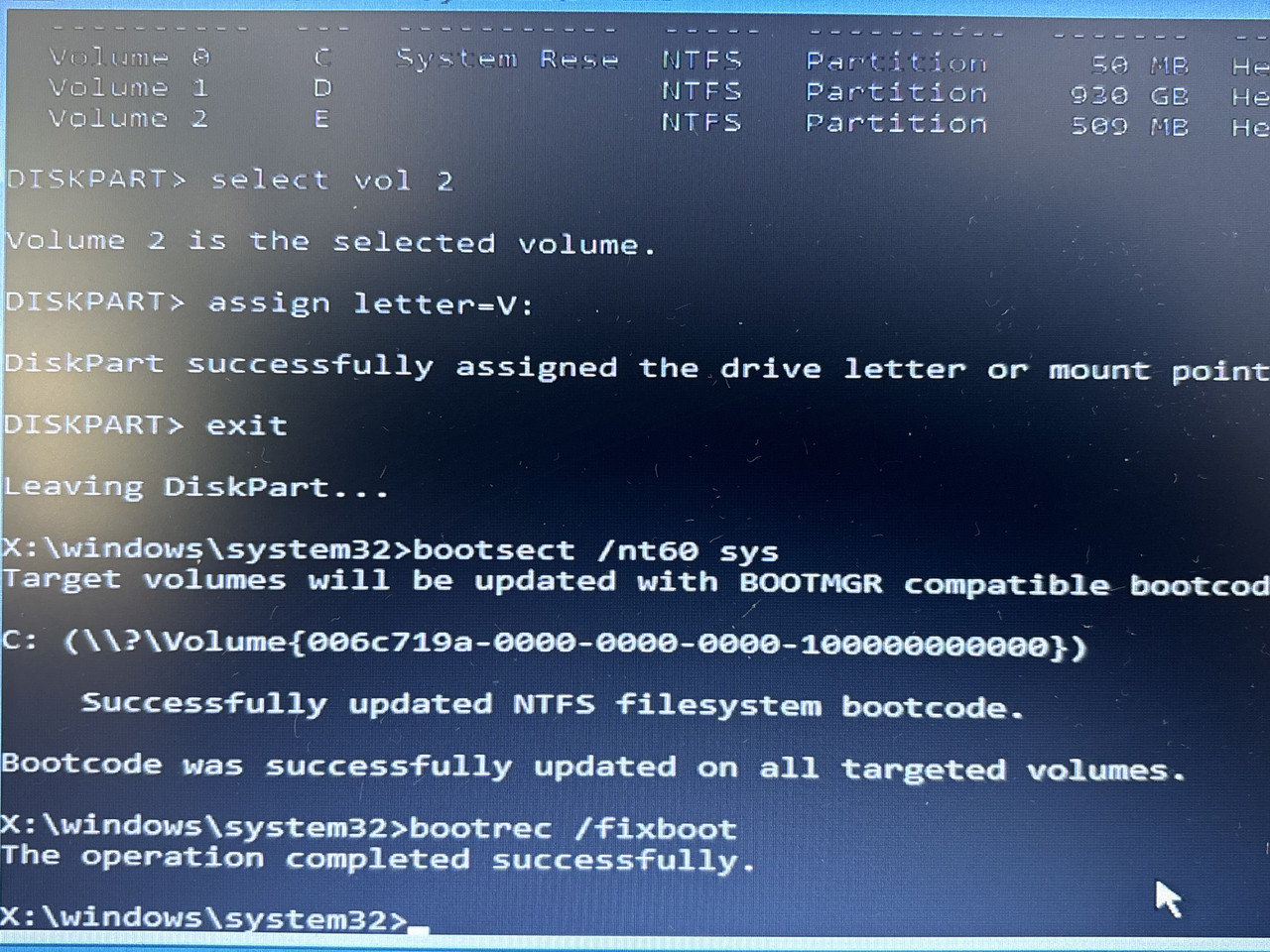
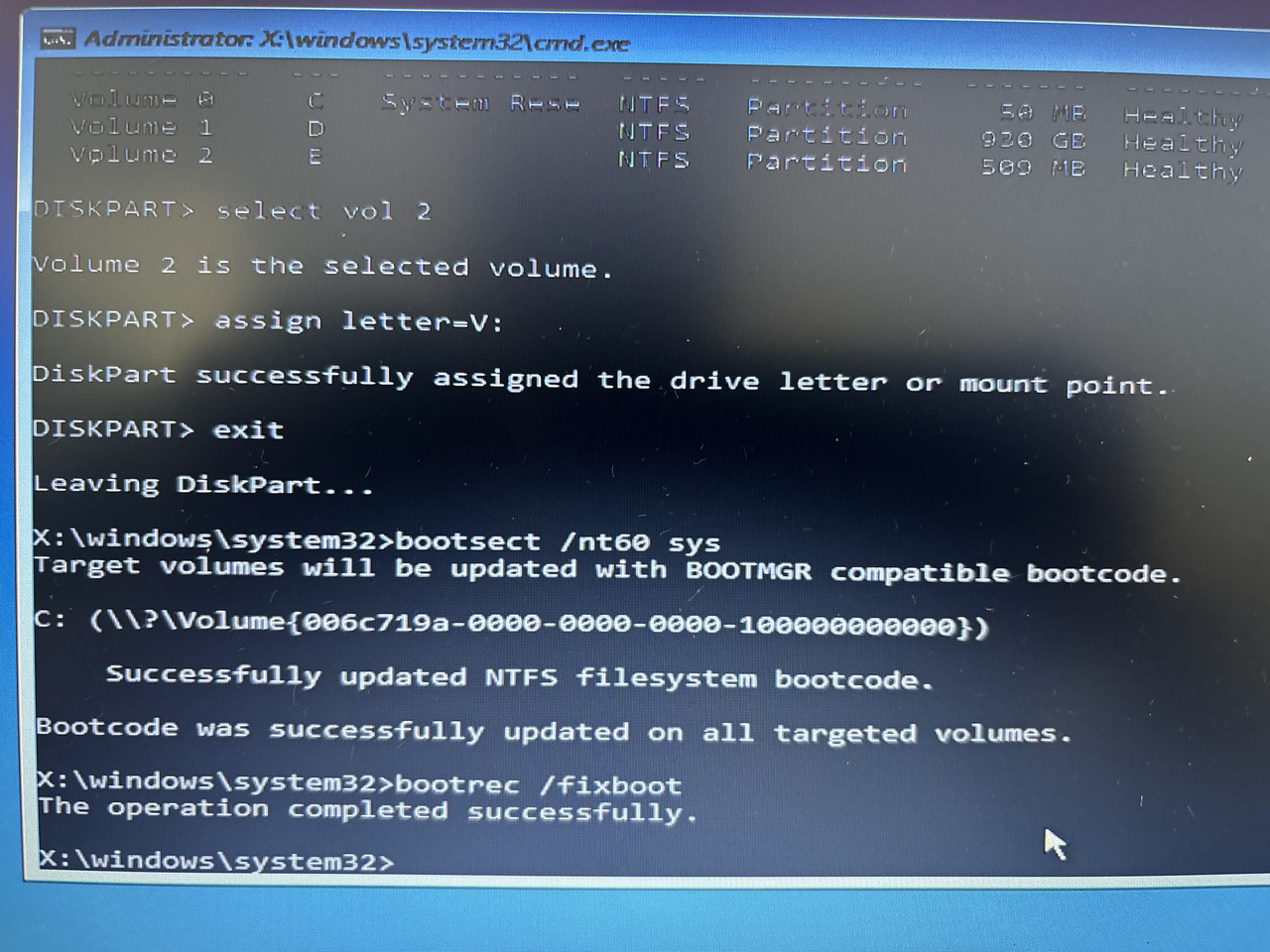
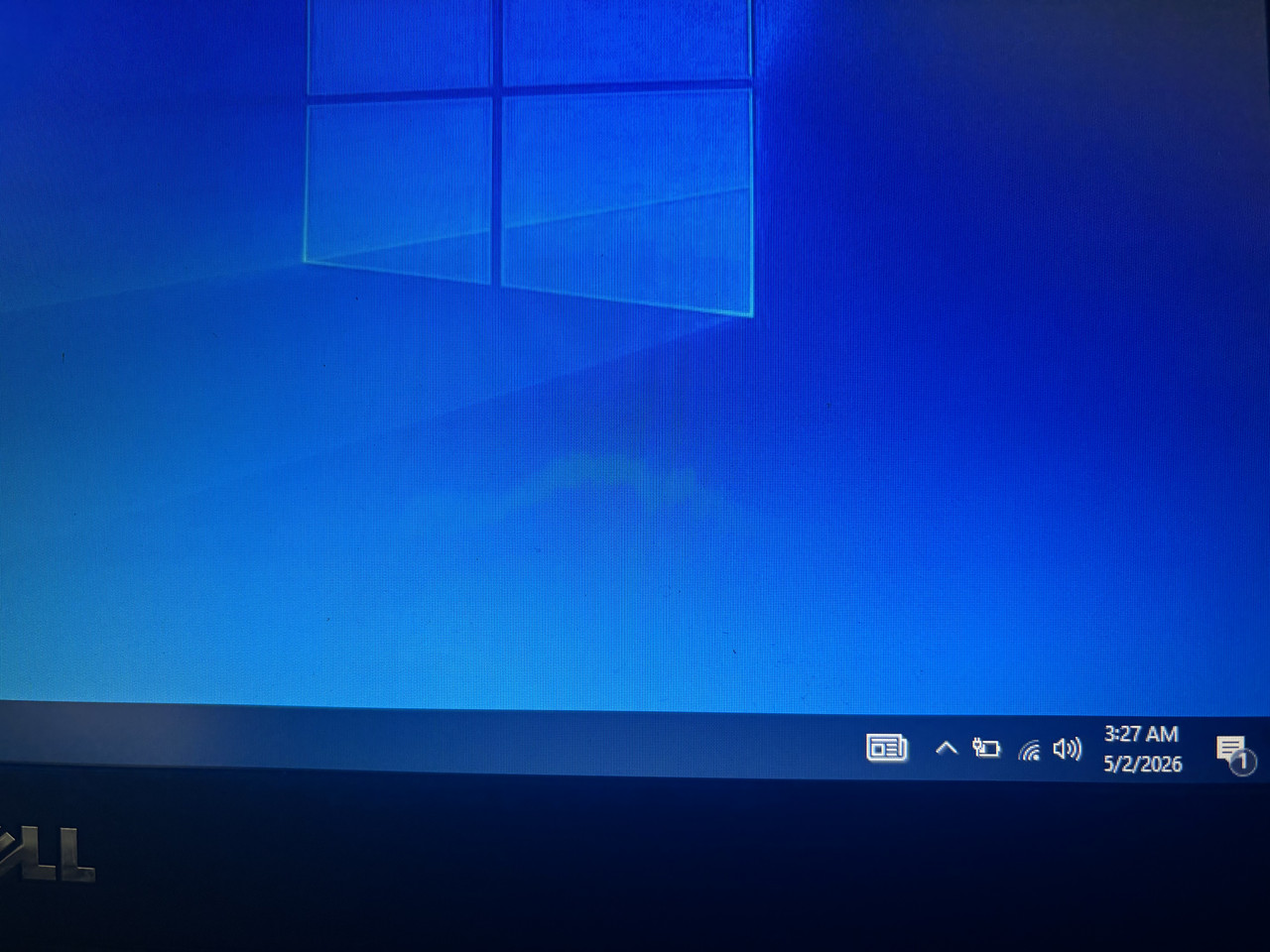
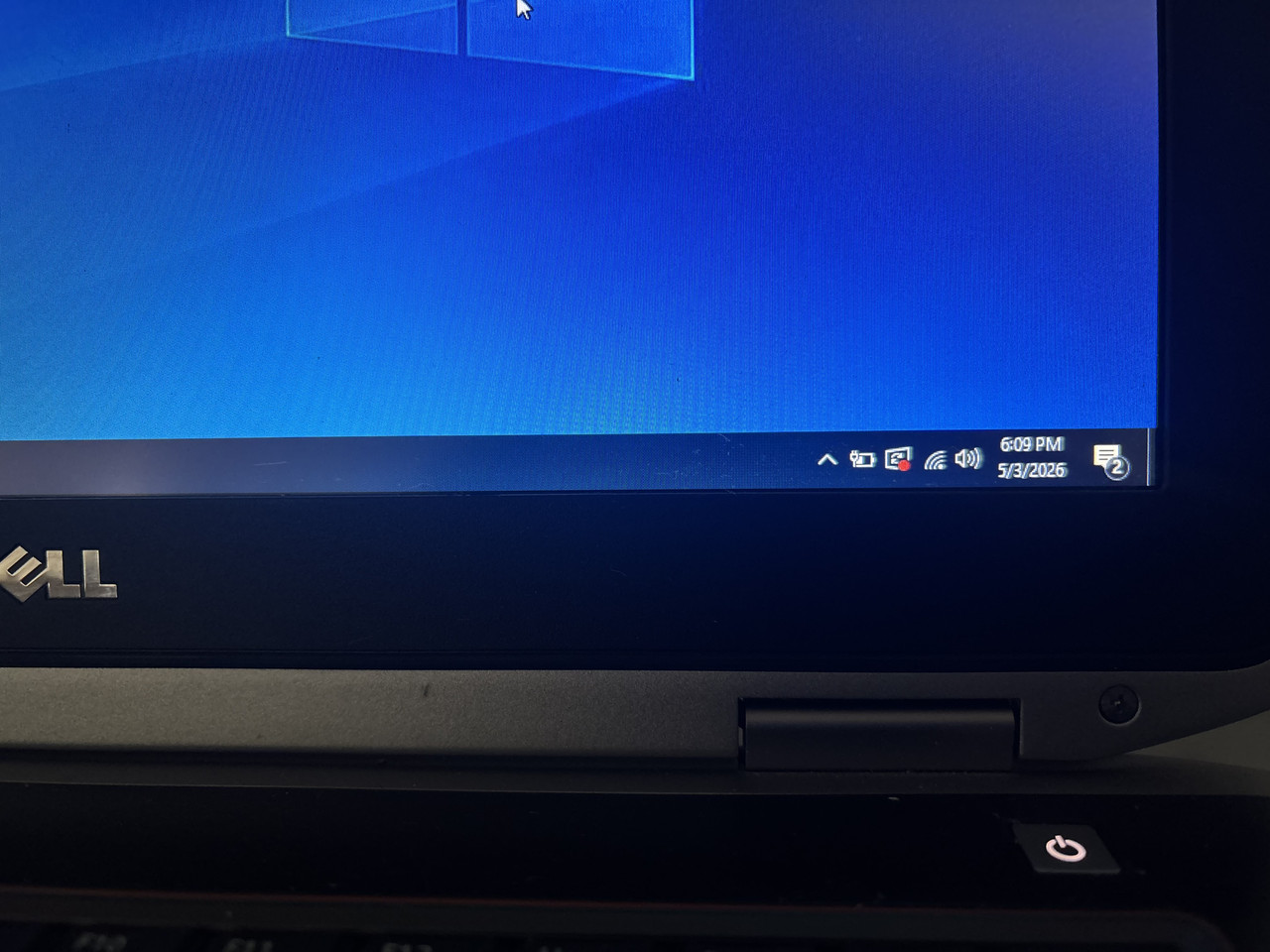
Dell Latitude E6420 — initial intakePowered on — “Invalid configuration / Time-of-day not set” BIOS errorInside BIOS Setup (F2) — Battery InformationWindows Recovery Environment (WinRE) — Automatic RepairDiskpart — list vol (identifying partitions)Diskpart — assigning EFI partition letter V:Bootsect /nt60 — boot sector repairbootrec /rebuildbcd — rebuilding the BCDOperation completed successfullyFirst successful Windows bootWindows desktop — system stableActivate Windows prompt on desktopWi-Fi troubleshooting — no internet (globe icon)Windows Network Adapter troubleshooter — root cause identified: wireless capability turned offDell Latitude E6420 — repair documentationWi-Fi restored — Google loads in browser

Dell Latitude E6420 — initial intake

Step 1

Project Notes

Dell Latitude E6420 — Full System Recovery Case Study

Download PDF

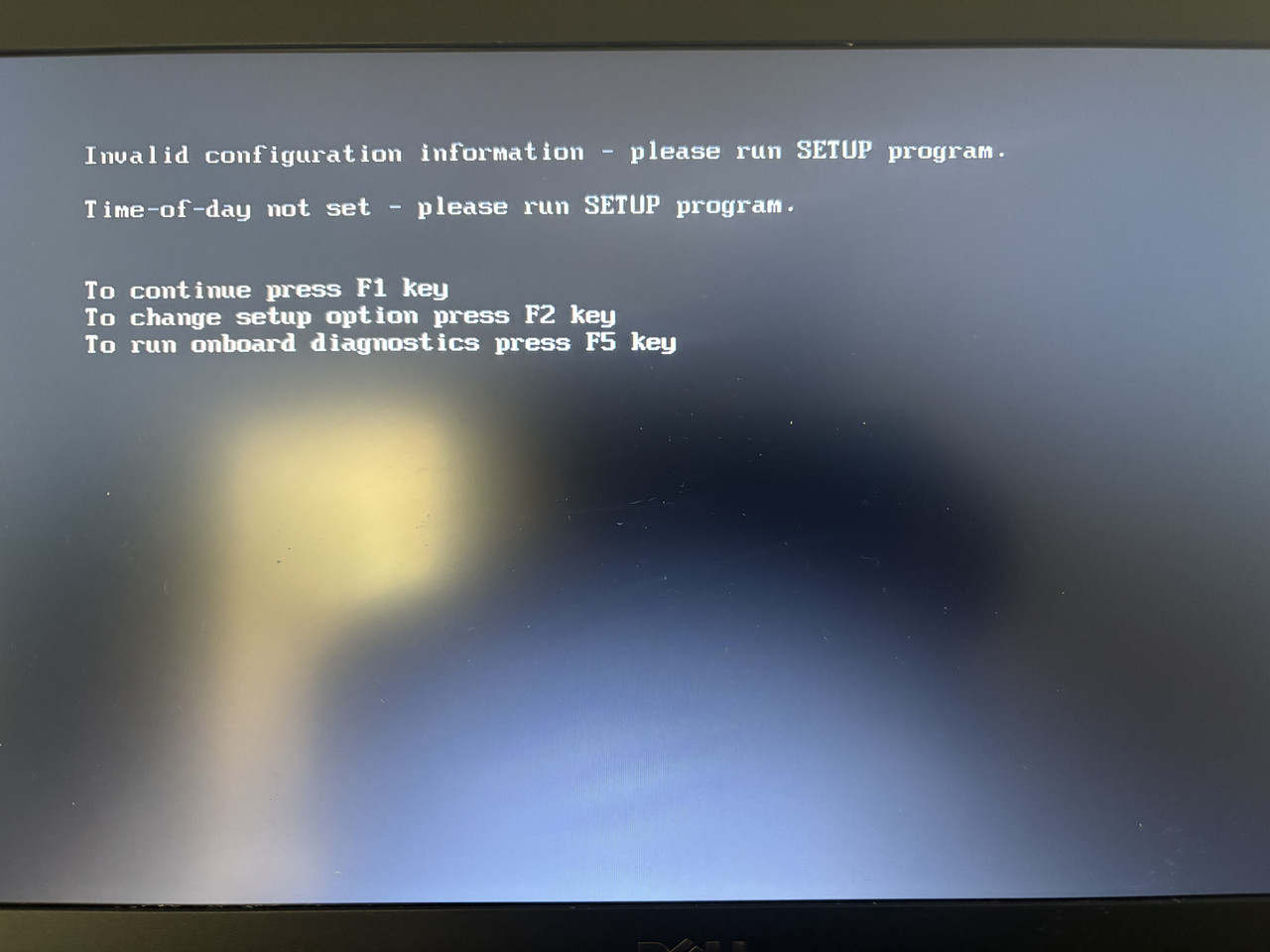
1. BIOS Error on Startup

Error Messages

  • “Invalid configuration information — please run SETUP program.”
  • “Time-of-day not set — please run Setup program.”

Cause

These errors appear when the CMOS battery (the small battery that powers BIOS memory) has died. When this happens, BIOS settings reset and the system loses date/time information.

Immediate Fix

  • Press F2 to enter BIOS Setup.
  • Set the correct date and time.
  • Save changes and reboot.

Long-Term Fix

  • Replace the CMOS battery to prevent the error from returning every time the laptop is powered on.

Warning

Opening a laptop can damage sensitive hardware. Always check Dell’s official documentation before attempting repairs.

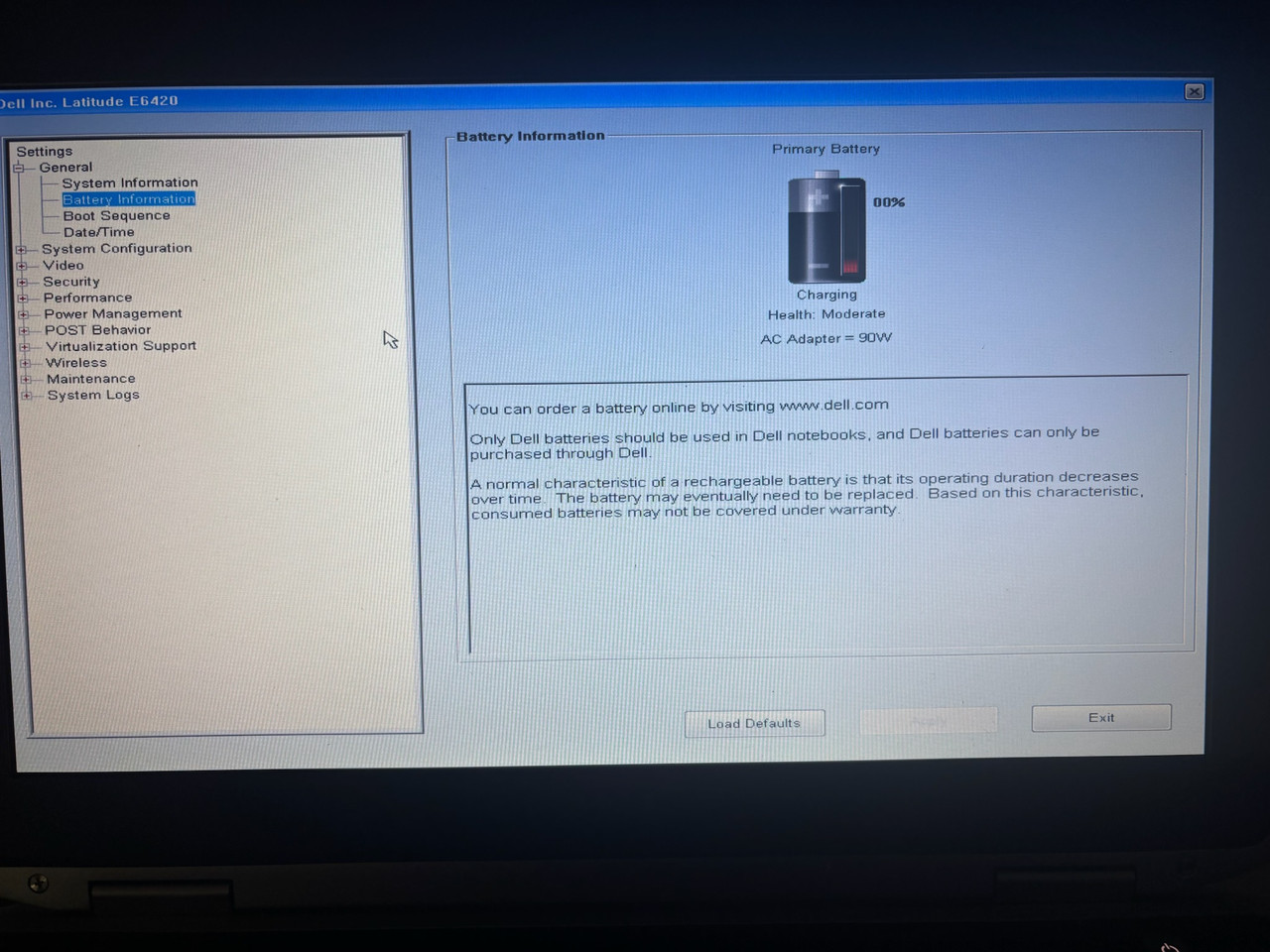
2. Inside the BIOS (After Pressing F2)

The BIOS screen allows low-level configuration of hardware before the OS loads.

Notes

  • BIOS is accessed by pressing F2 at the Dell logo.
  • Used for fixing boot issues, changing boot order, or restoring defaults.
  • If a BIOS password is set and unknown, full access is restricted.

Battery Information

  • Primary battery showing 0%
  • Health status: Moderate / Communication Error

Boot Sequence / Date & Time

  • Verified settings
  • Adjusted date/time
  • Admin password unknown (not required for basic changes)

Motherboard Note

There is a jumper pin that bridges two pins — used for BIOS reset on some models.

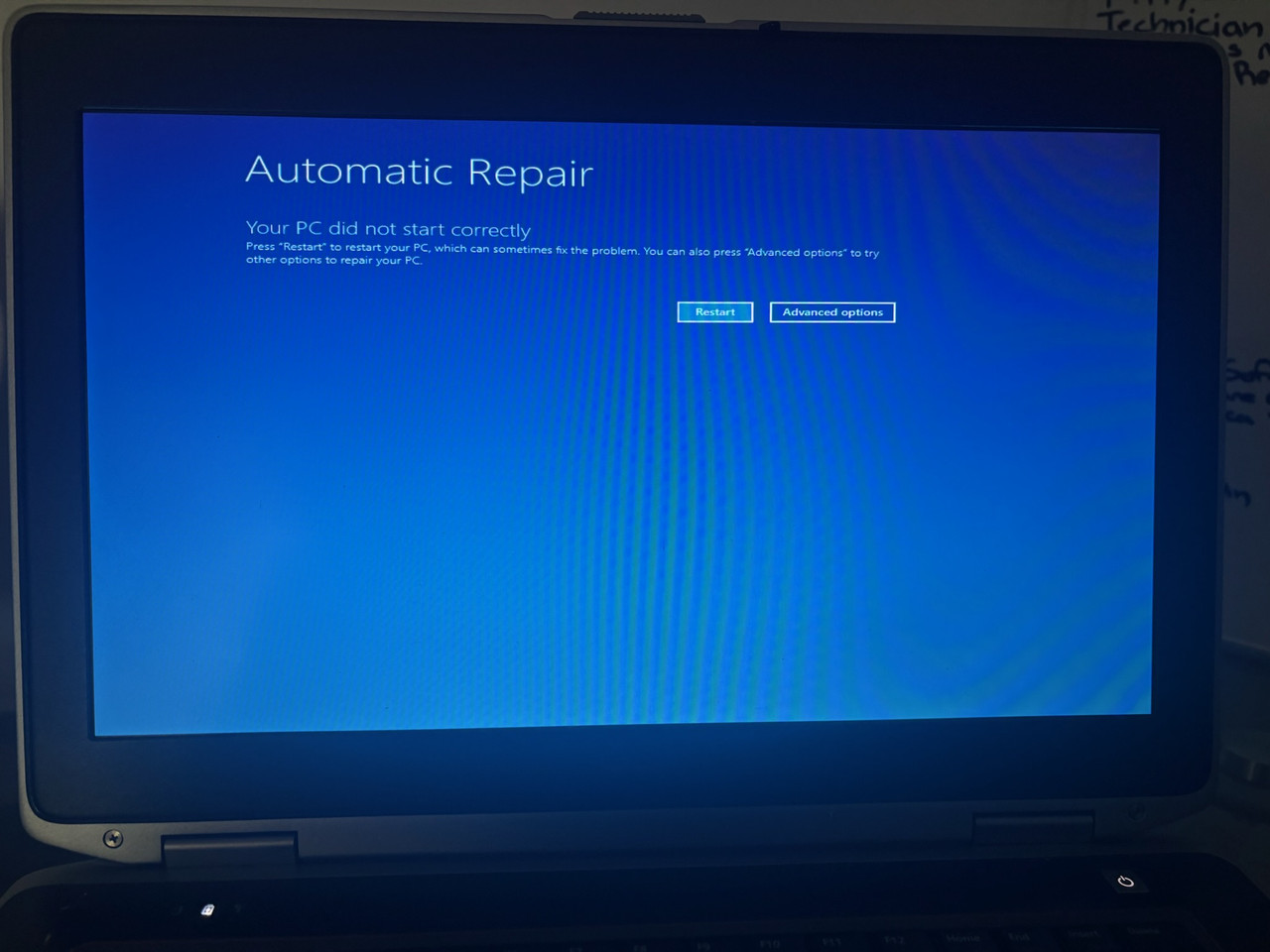
3. Windows Recovery Environment (WinRE)

Advanced Options → Troubleshoot → Advanced Options

Startup Repair

  • System attempted repairs
  • Checked disk for errors
  • Attempted repairs failed
  • Error log: D:\Windows\System32\Logfiles\Srt\SrtTrail.txt

System Restore

  • No restore points available

System Image Recovery

  • Not usable (no image available)

4. Command Prompt Troubleshooting

Initial Commands

  • bootrec /fixboot → Attempted
  • bootrec /fixmbr → Operation completed successfully

Common Issues Encountered

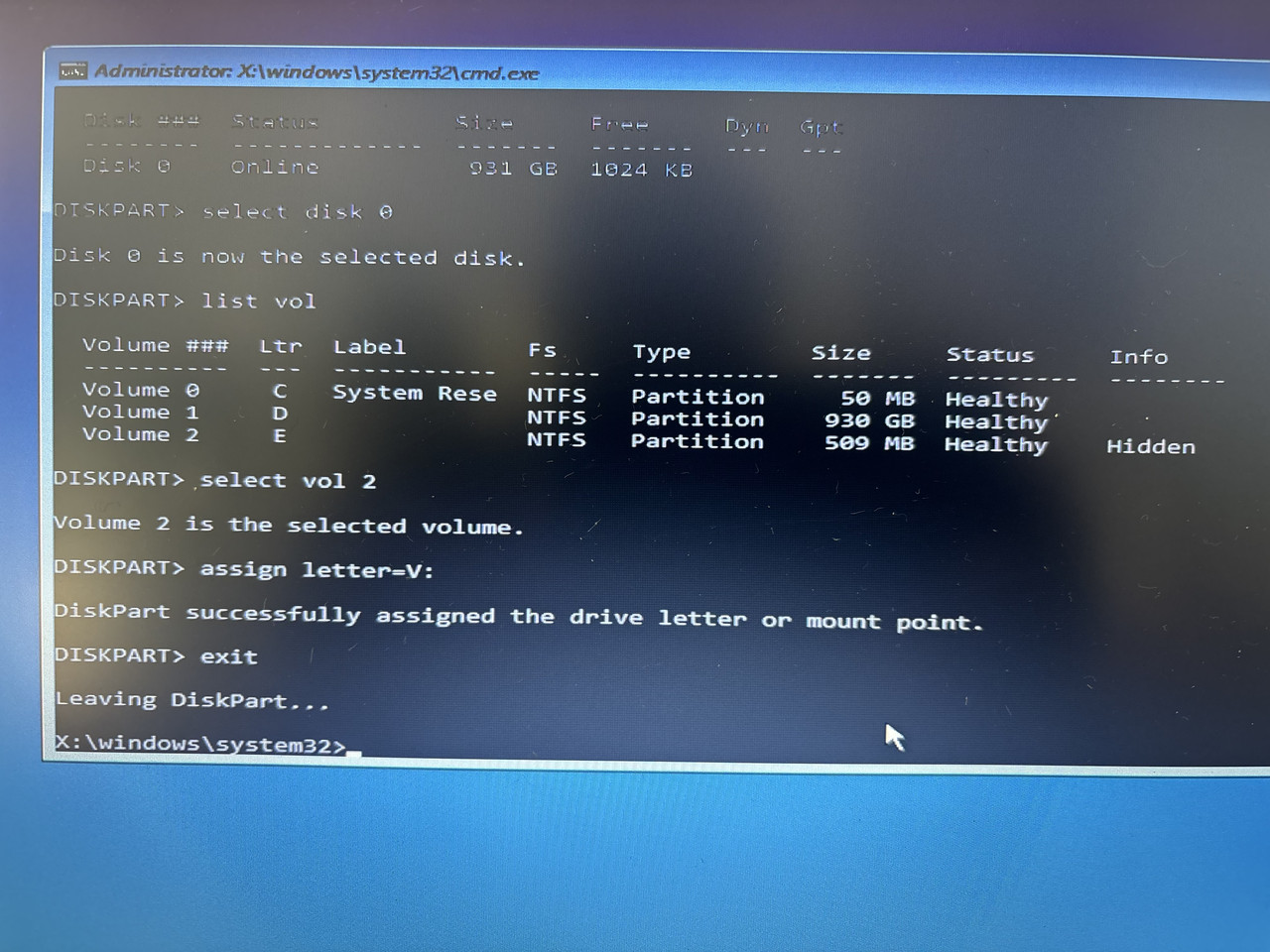
“Access Denied” when running boot commands.

Fix: Assign a Drive Letter to the EFI Partition

  1. diskpart
  2. list disk
  3. select disk 0
  4. list vol
  5. Identify EFI partition (100–500MB, FAT32)
  6. select vol X
  7. assign letter=V:
  8. Exit Diskpart

Run boot commands again using the new drive letter.

5. Boot Sector Repair

Bootsect Commands

bootsect /nt60 sys
bootsect /nt60 all /force

These commands update the boot sector and help bypass “Access Denied” errors.

6. Rebuilding the BCD (Boot Configuration Data)

Final Commands

  1. bootrec /rebuildbcd
  2. Select the Windows installation
  3. Navigate to boot folder:
    • C:
    • cd boot
    • If path not found: try D: then cd boot
  4. Remove file protections: attrib bcd -s -h -r
  5. Rename corrupted BCD: ren bcd bcd.old
  6. Rebuild again: bootrec /rebuildbcd
  7. Add installation to boot list → type Y

Final Step

  • Exit → Turn off PC
  • Remove USB recovery media
  • Boot system normally
  • “The operation completed successfully” confirms the boot records were fixed.

Wi-Fi Connectivity Issue

Symptoms

  • Network icon shows globe / Earth icon
  • Indicates No Internet (NCSI: Network Connectivity Status Indicator)

Troubleshooting Steps

  1. Right-click the globe icon → open Network Flyout
  2. Select Troubleshoot problems
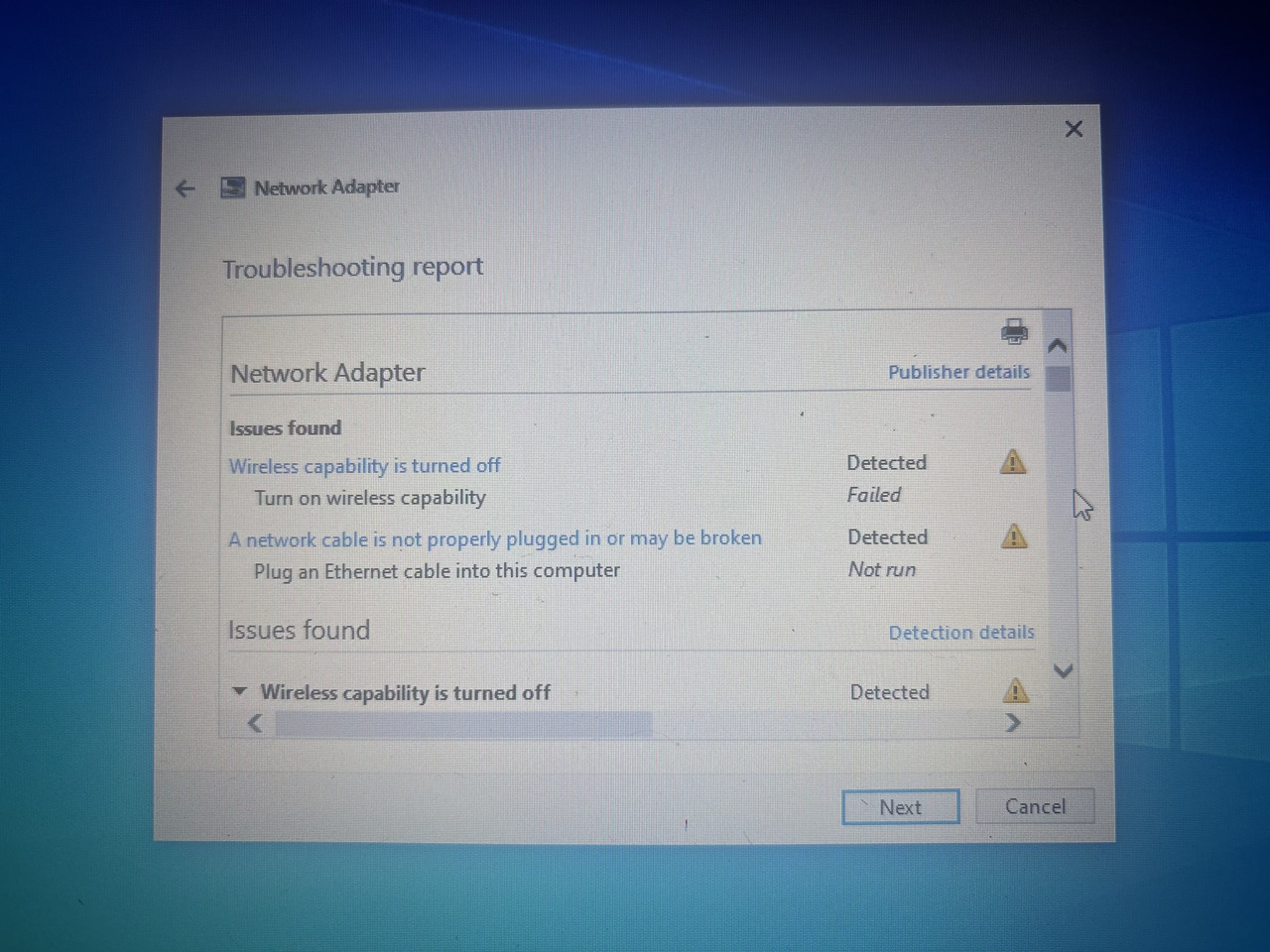
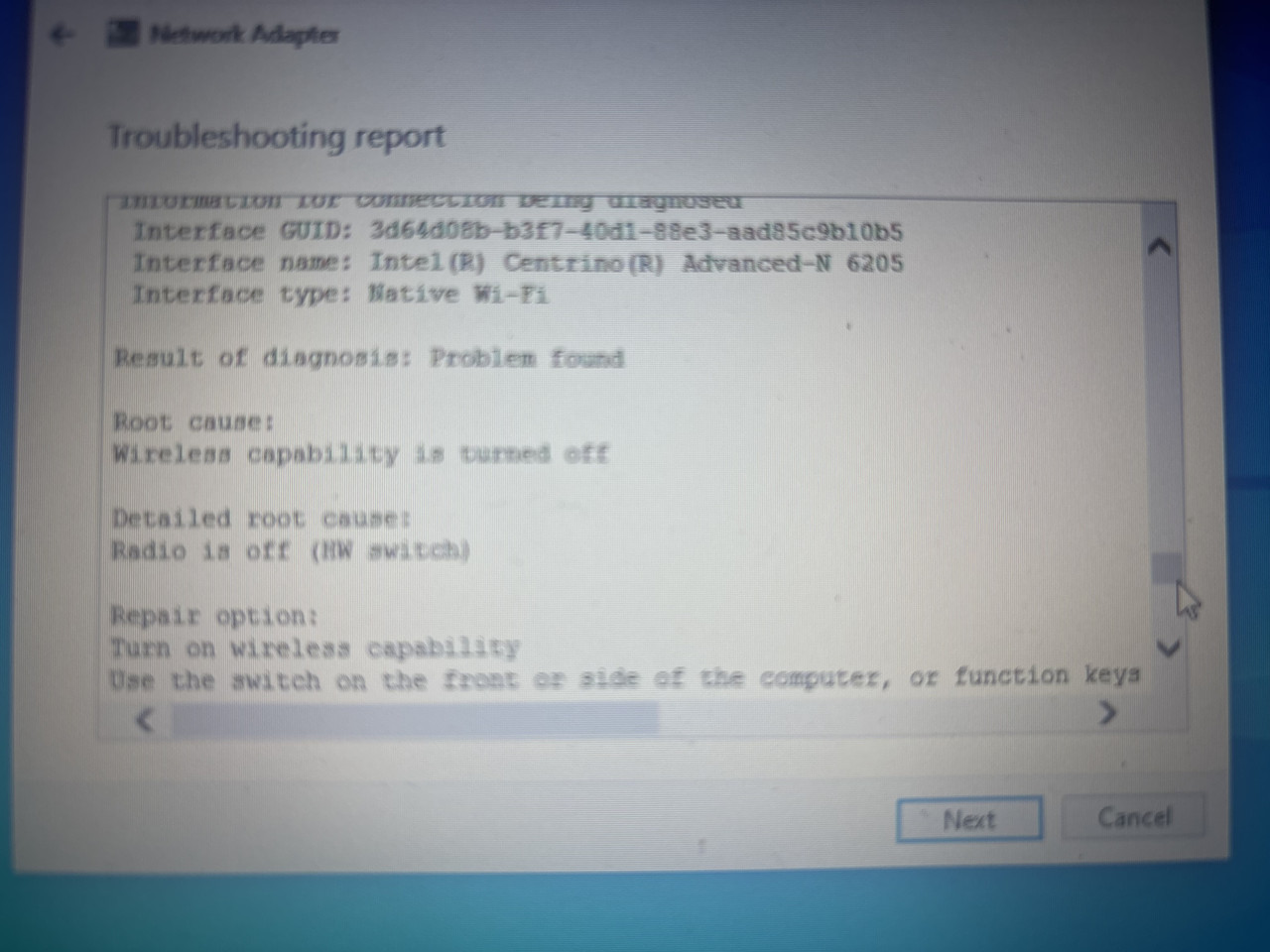
  3. Network Adapter Troubleshooter shows warnings:
    • Wireless capability is turned off
    • Network cable unplugged or broken (not relevant for Wi-Fi)

Fix

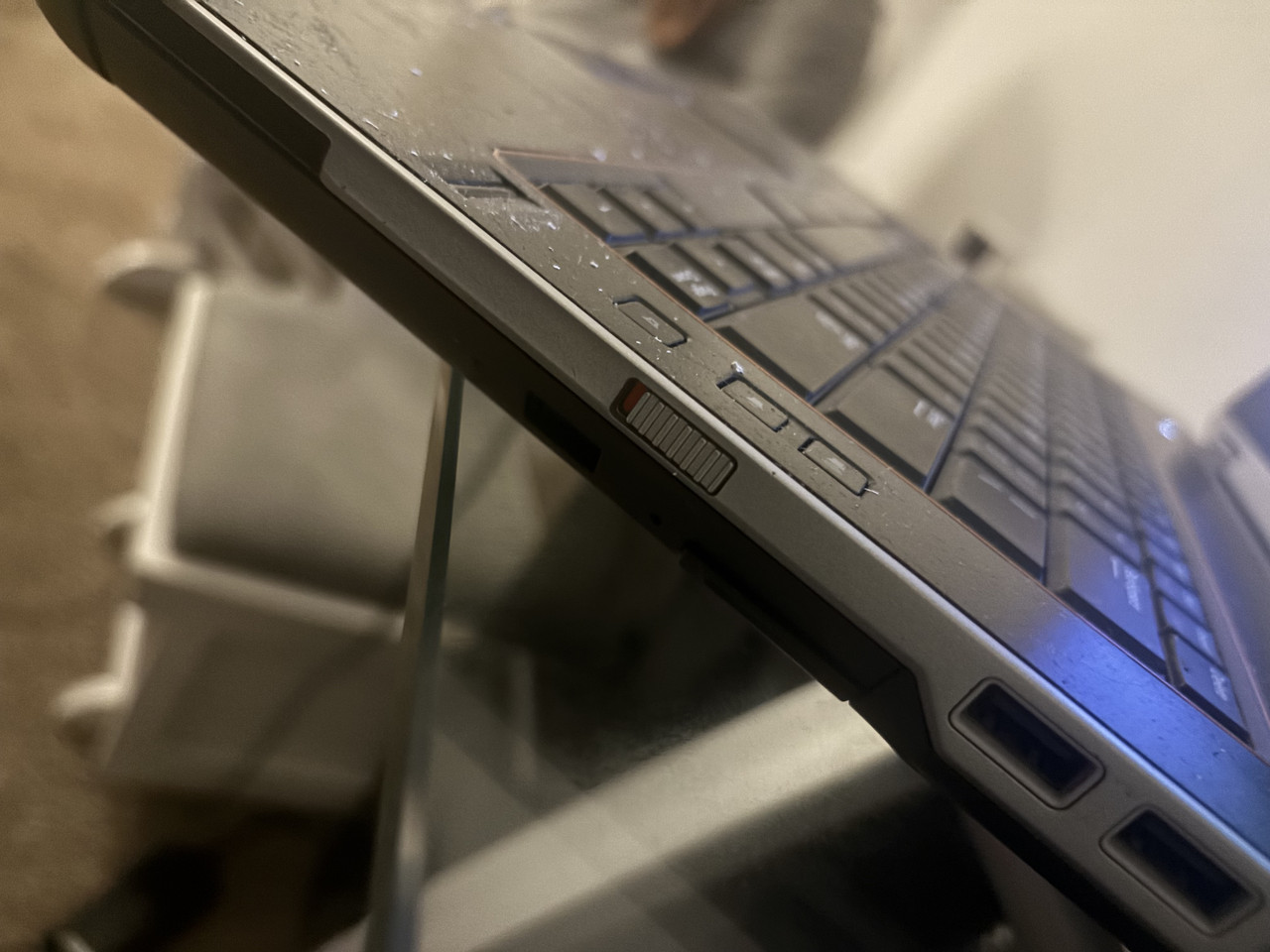
  • Toggle the physical Wi-Fi switch on the right side of the laptop
  • Rerun troubleshooter → issue resolved
  • Open Network & Internet Settings
  • Select Wi-Fi network
  • Enter secure password
  • Connect successfully

Verification

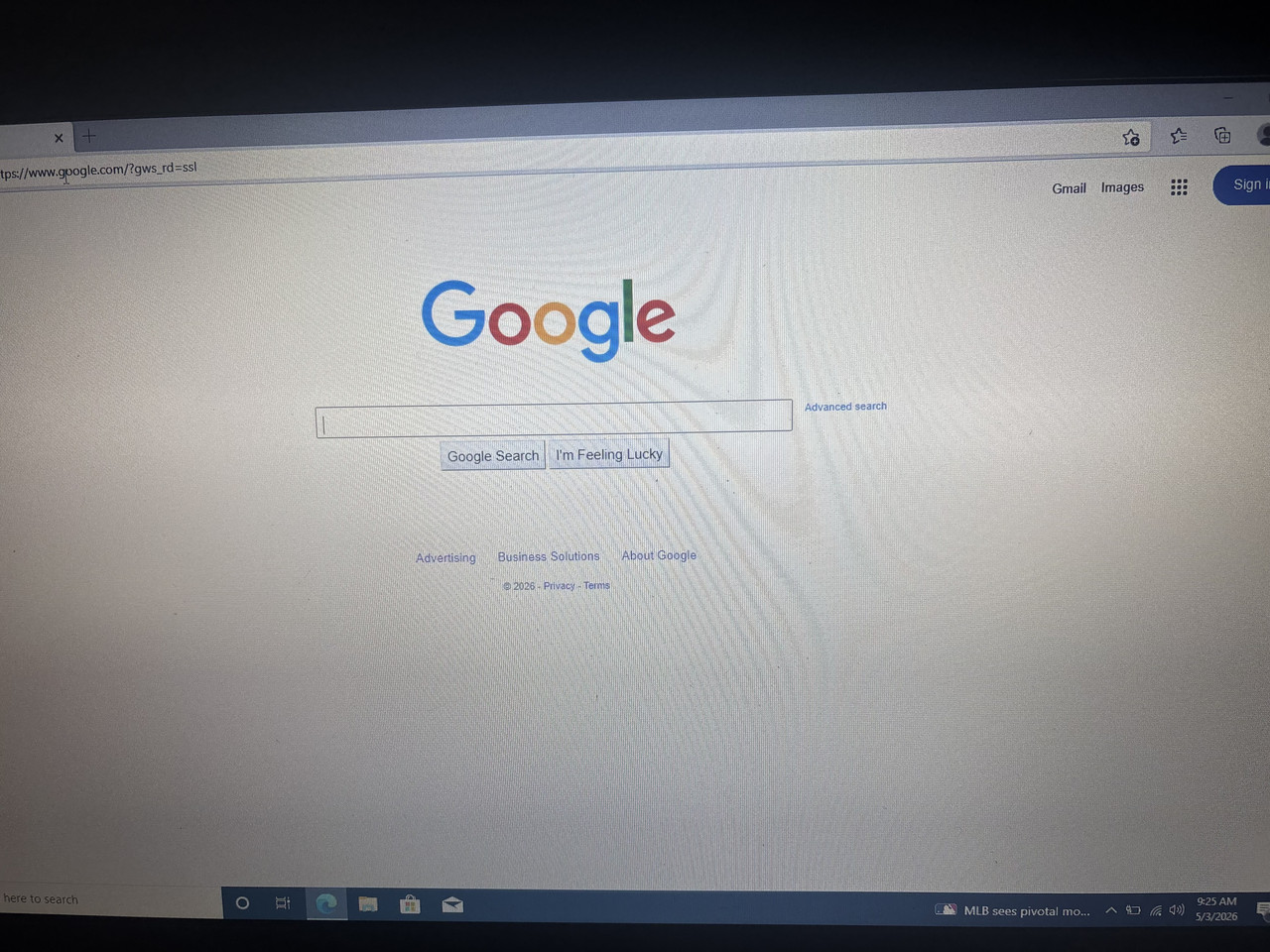
  • Tested DNS by reaching out to a Google server
  • Internet connection confirmed working

Skills Demonstrated

BIOS / CMOS troubleshootingWindows Recovery Environment (WinRE)Diskpart, Bootrec, BootsectEFI partition repairBCD reconstructionNetwork troubleshootingHardware switch diagnosticsSecure Wi-Fi configuration

Need a similar rescue?

BIOS, bootloader, and network recoveries are my bread and butter. Let’s talk about your machine.

Get in touch